Microsoft Outlook 2019 & 2021 on Windows (IMAP & SMTP over SSL)
To configure Outlook 2019 or 2021 (the setup process for the two versions is the same) on your Windows PC for sending and receiving emails using SMTP and IMAP over SSL, follow these steps:
Before You Start:
- Email Address: Replace
username@example.comwith your actual email address. - Server Host: Replace
mail.your-server.comwith your server's host name (listed in your Control Panel). For example, if your server is s777.sureserver.com, your Server Host would be mail.s777.sureserver.com.
1. Add a mail account
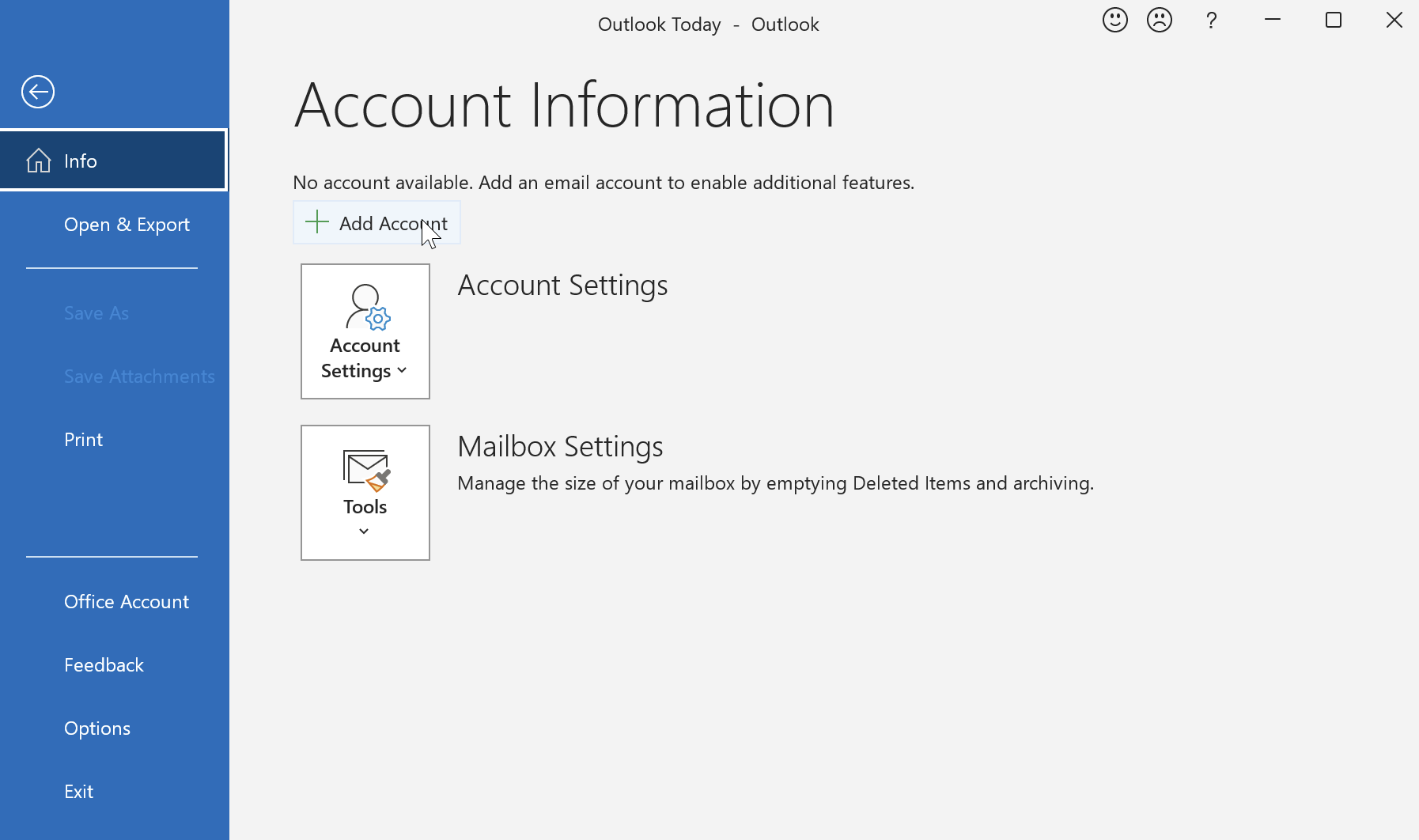
- Click on Account > Info > Add Account.
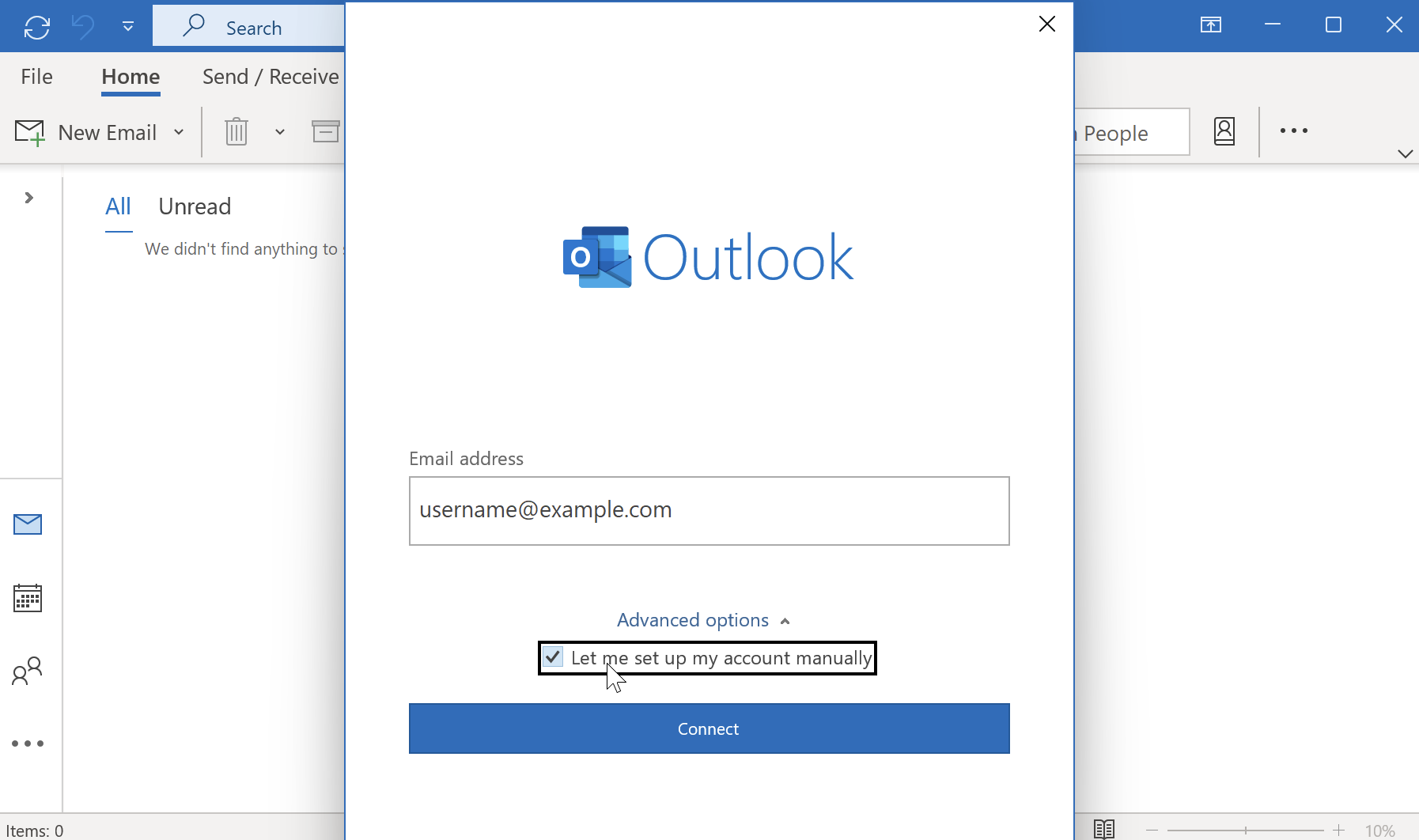
- Type in your email address username@example.com (replace with your actual address), and click Let me set up my account manually. Click Connect.
2. Choose the mail protocol (IMAP)
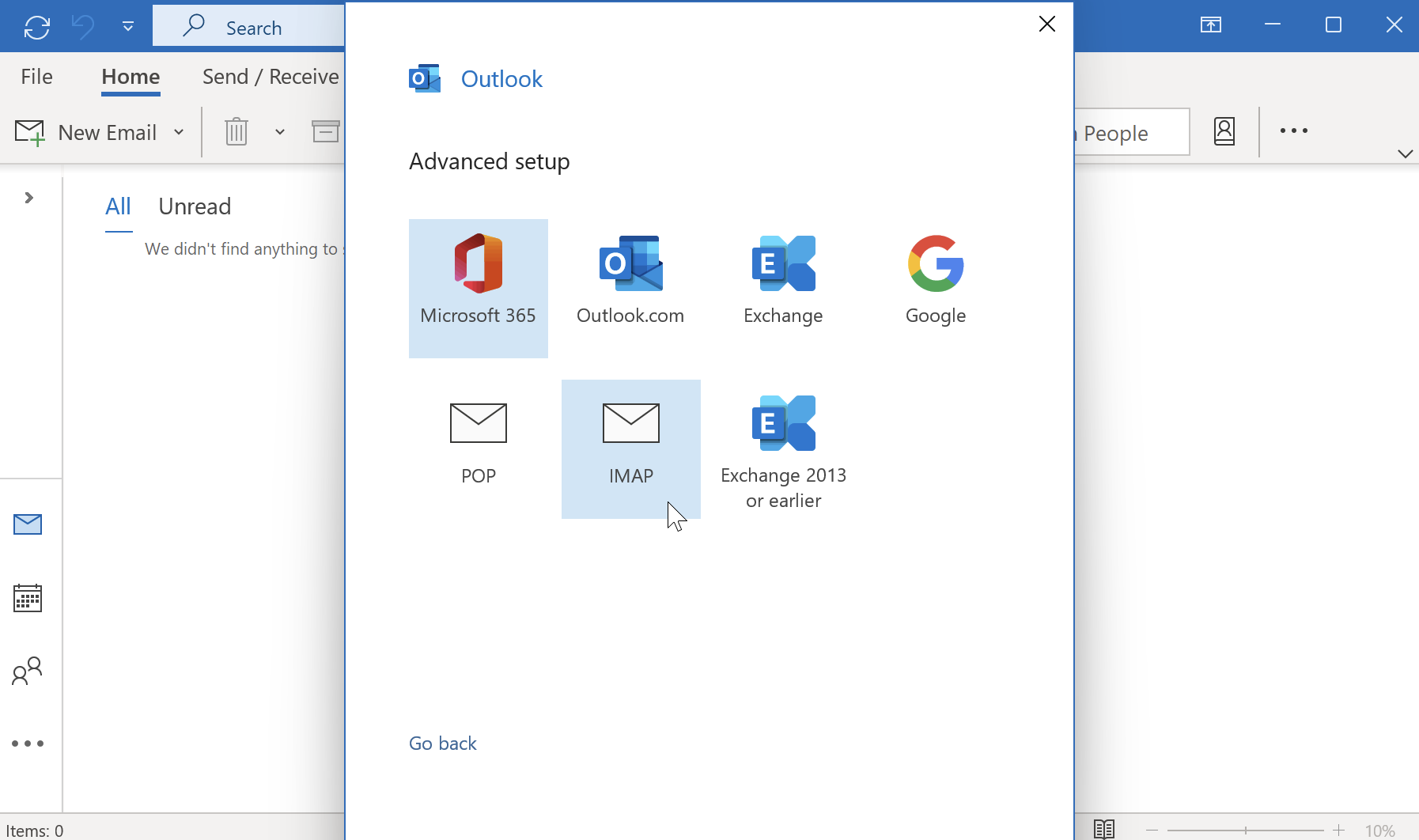
- Click IMAP, and you will be asked for the password of the mailbox.
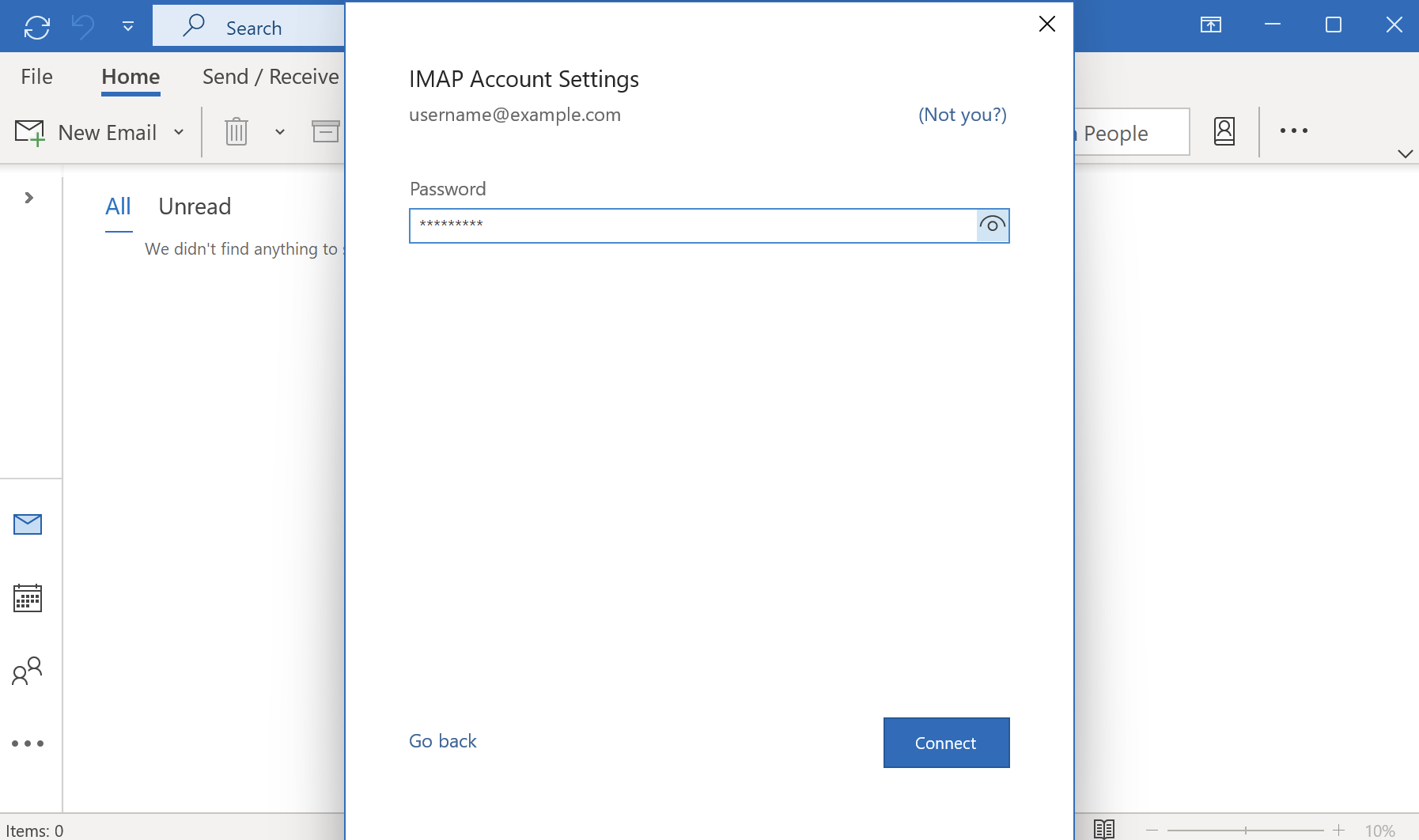
- Type in your password and click Connect.
3. Configure Server Settings
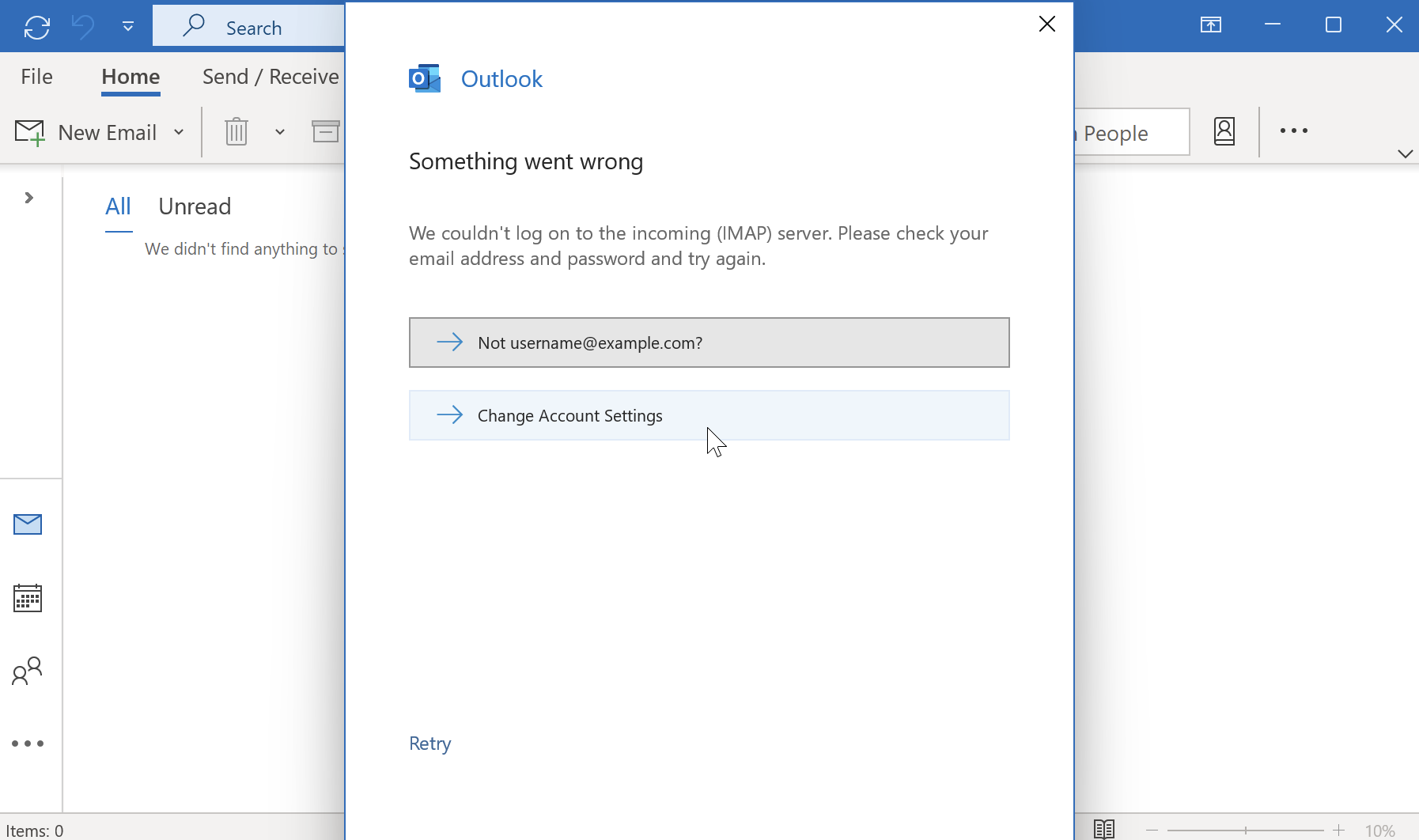
- You will get a Something Went Wrong error. Click Change Account Settings and enter the server details as shown below.
Incoming Mail Server:
- Host Name:
mail.your-server.com(replace with your server name) - Port: 993
- Encryption method: SSL/TLS
Outgoing Mail Server:
- Host Name:
mail.your-server.com(replace with your server name) - Port: 465
- Encryption method: SSL/TLS
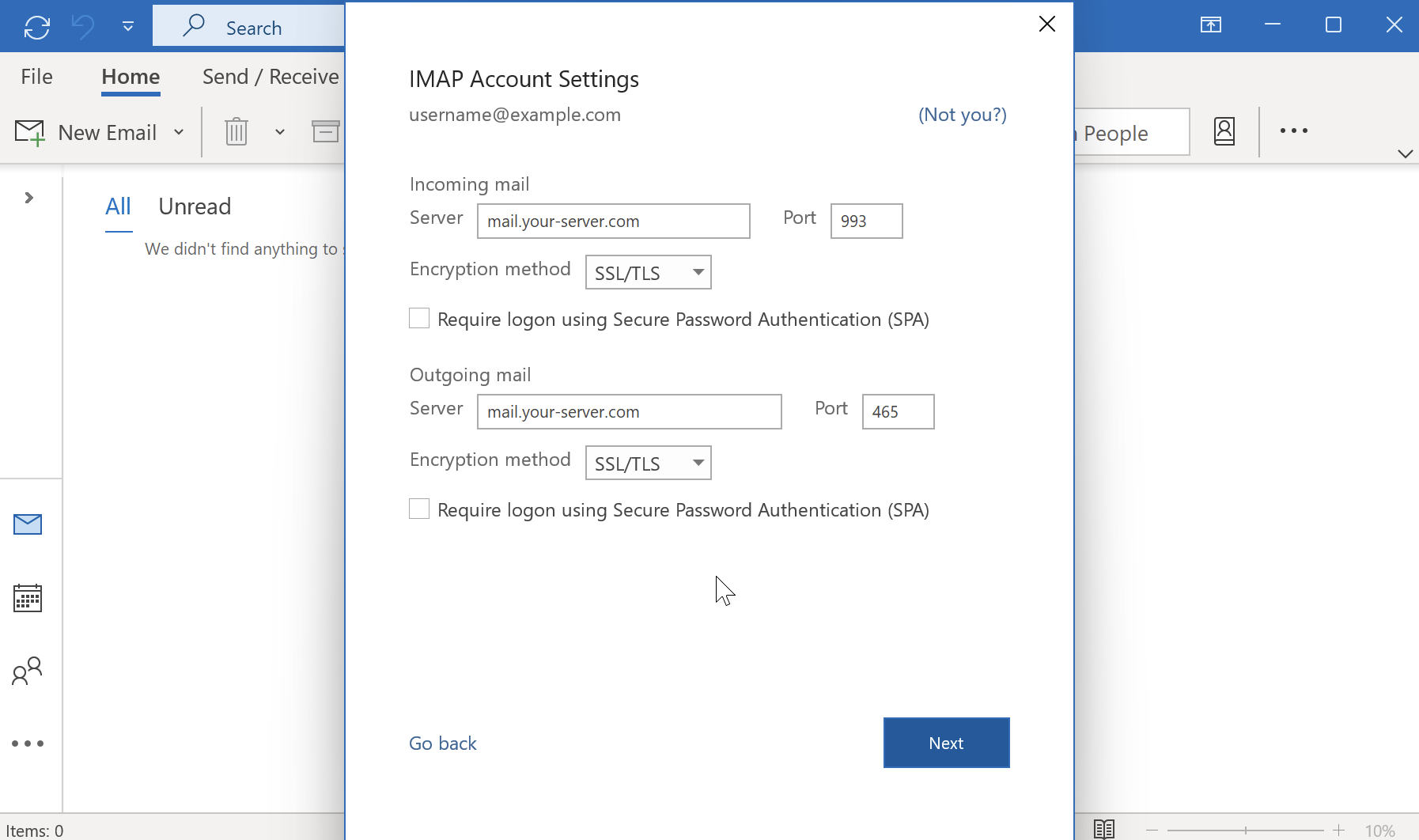
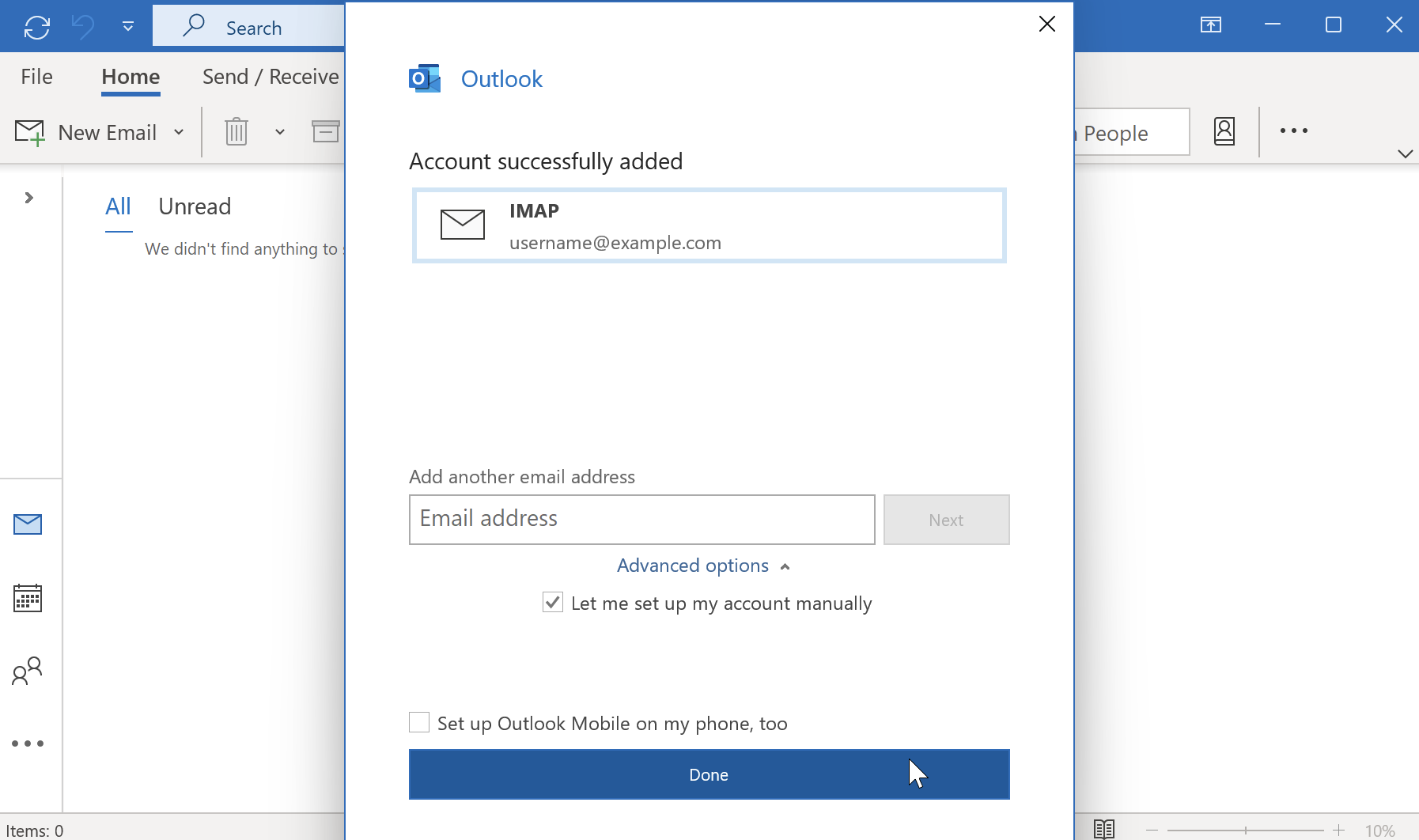
- Click Next. The account will now be added successfully. Click Done.
4. Adjust Advanced Settings
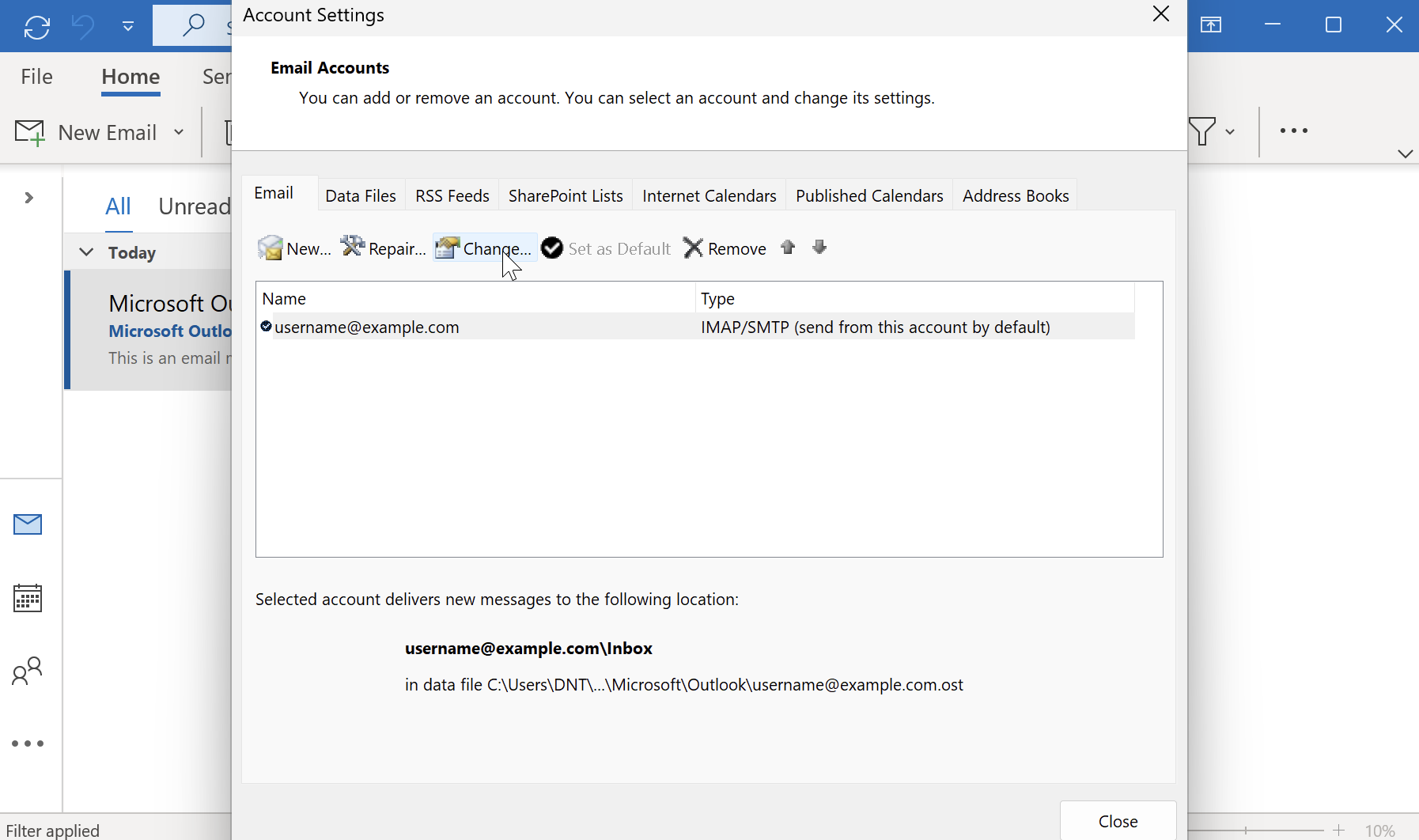
- In order to set the Root Folder Path, please go to File > Info > Account Settings.
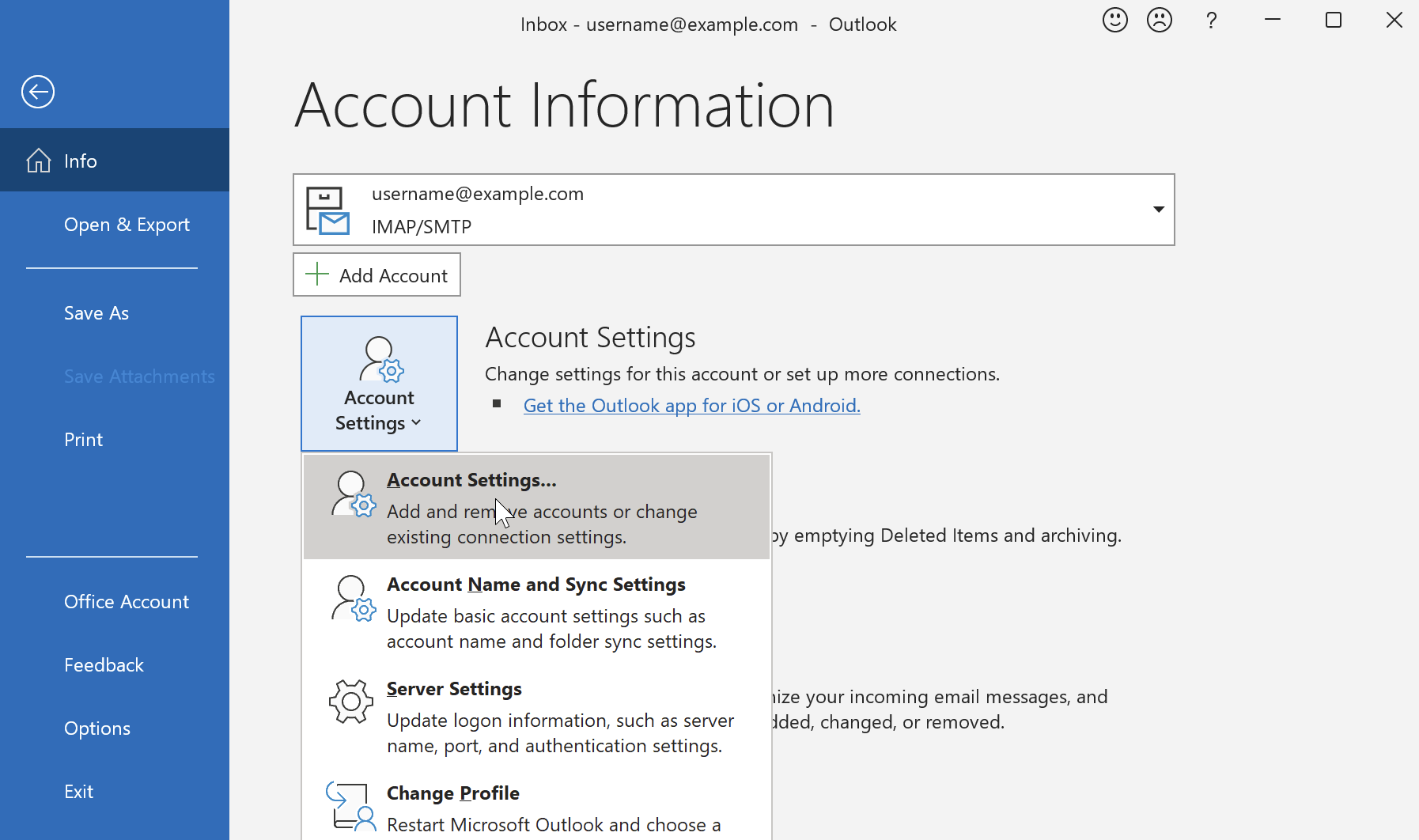
- Then, click on your account > Change.
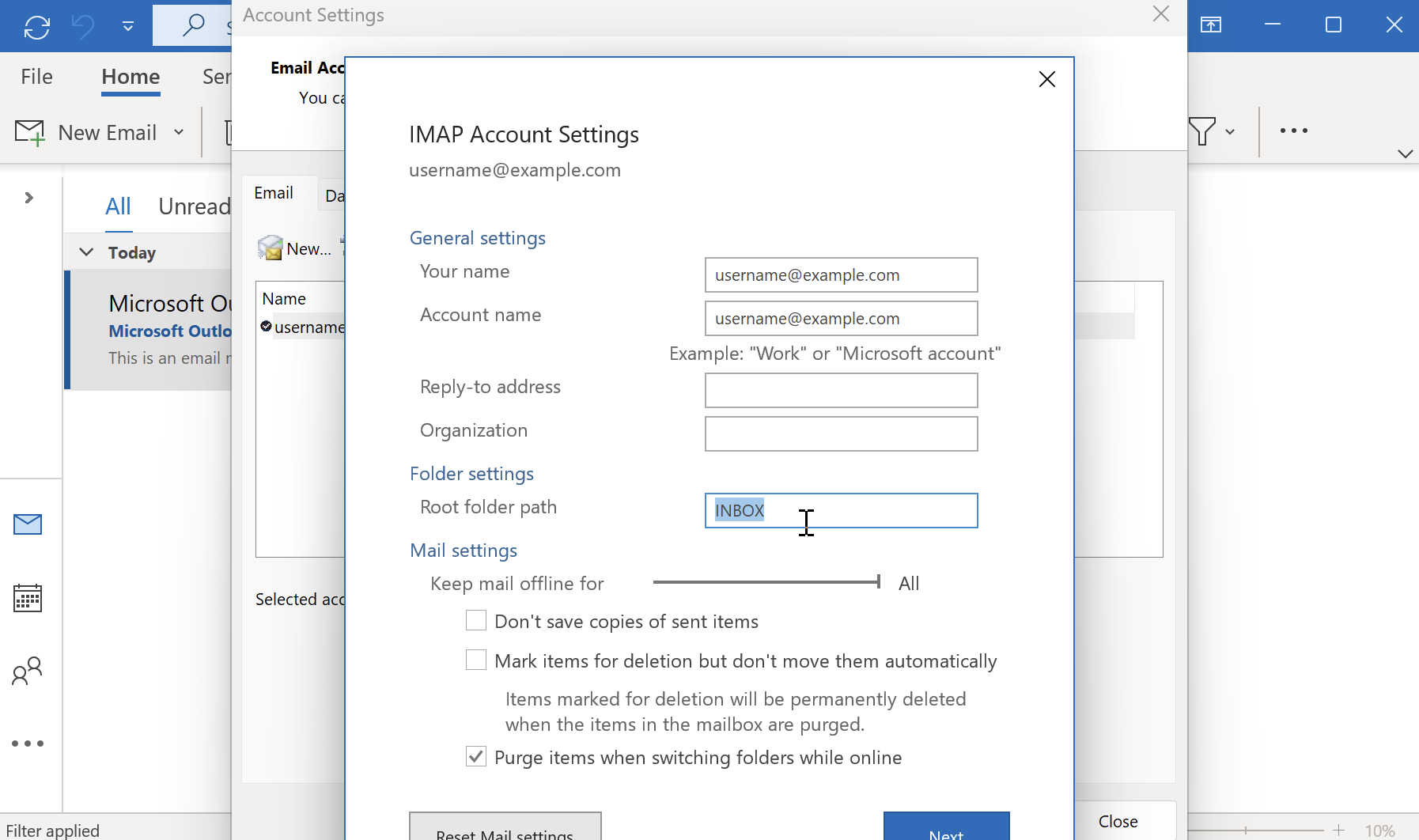
- Change the Root Folder Path and set it to INBOX. Click Next > Done.
5. Subscribe to IMAP folders
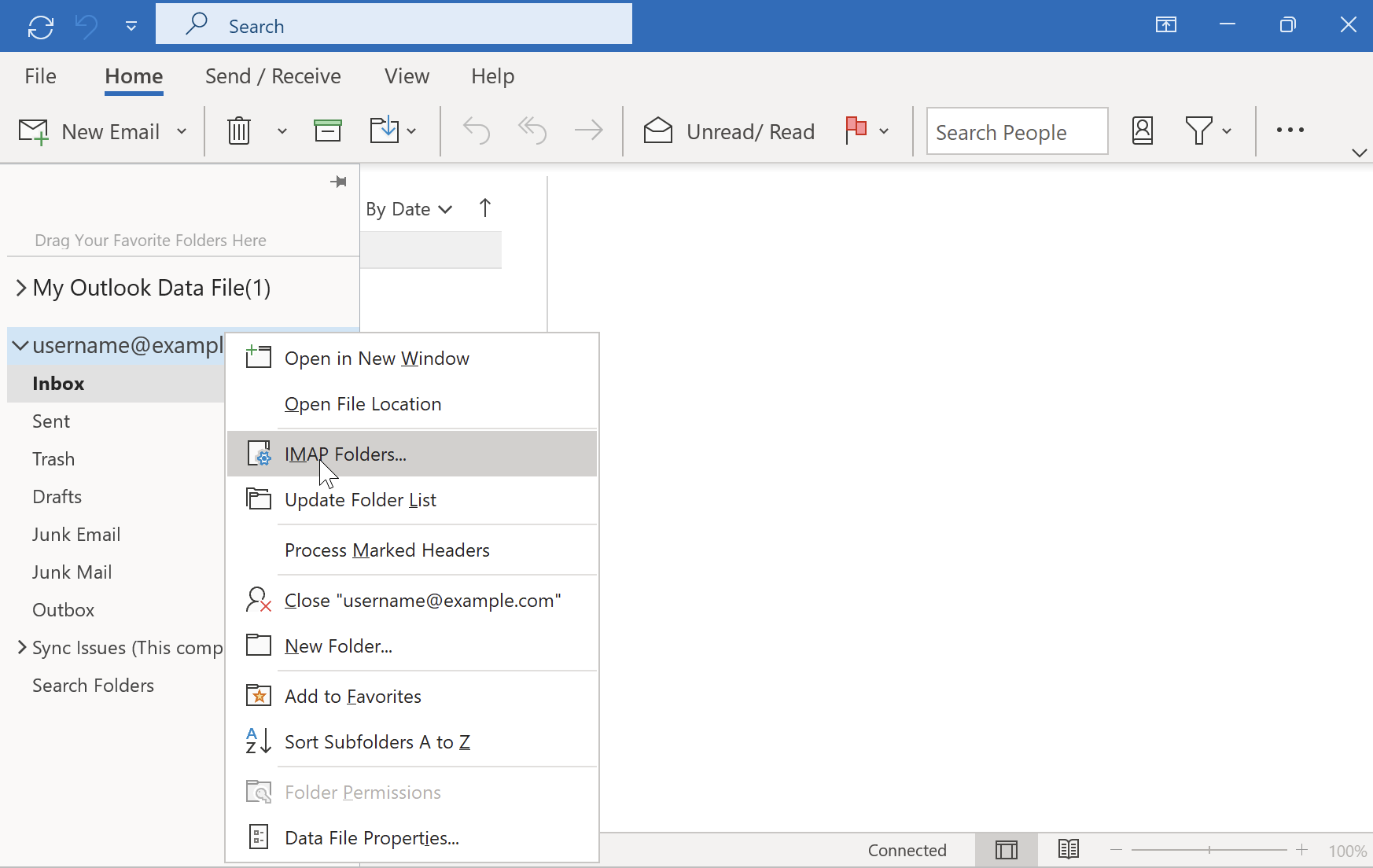
If you don't see all IMAP folders, such as the "Junk Mail" folder or the "Sent" folder, right-click on Inbox in the left Navigation Pane, and choose IMAP Folders.
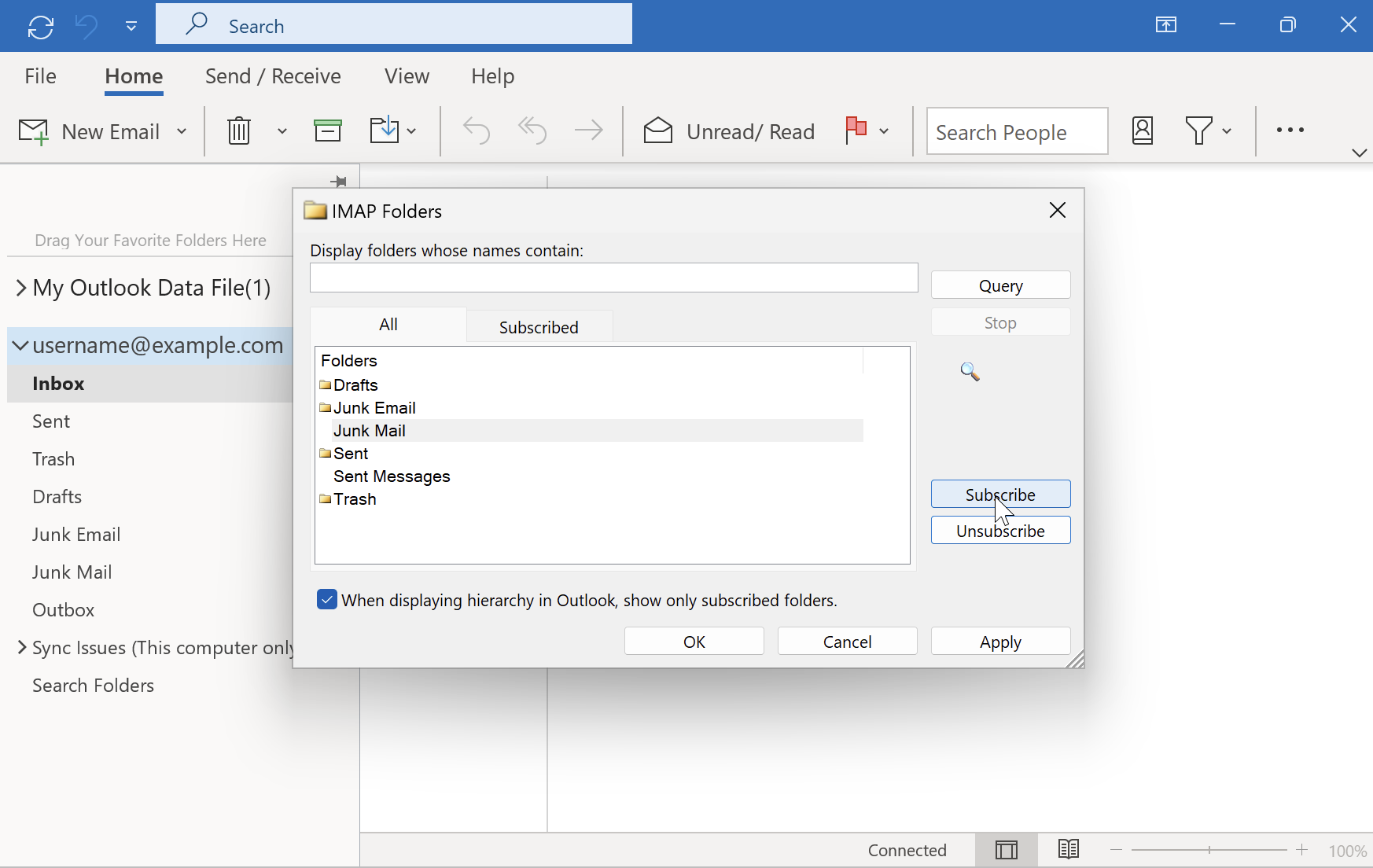
Click the Query button. Select the missing folders, and click Subscribe. Click OK to close the dialog.
- Your Outlook application is now configured.
 | Please bear in mind that messages marked as spam by SpamAssassin will be delivered into the Junk Mail folder, even though Outlook uses its own Junk Email folder by design. If you wish to mark a message you received in Outlook as spam, please manually move it into the Junk Mail folder. |