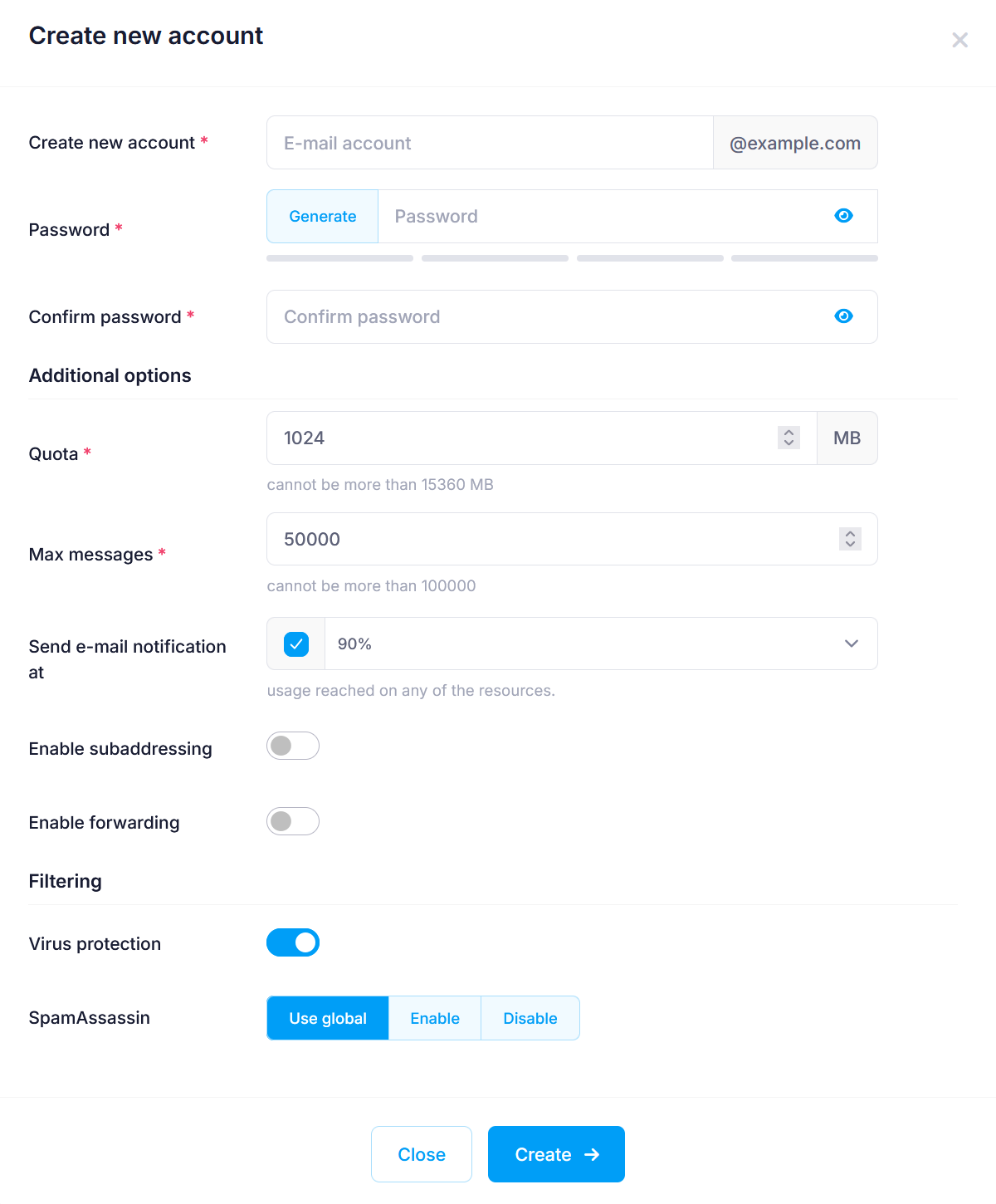
Creating email accounts
To create an email account:
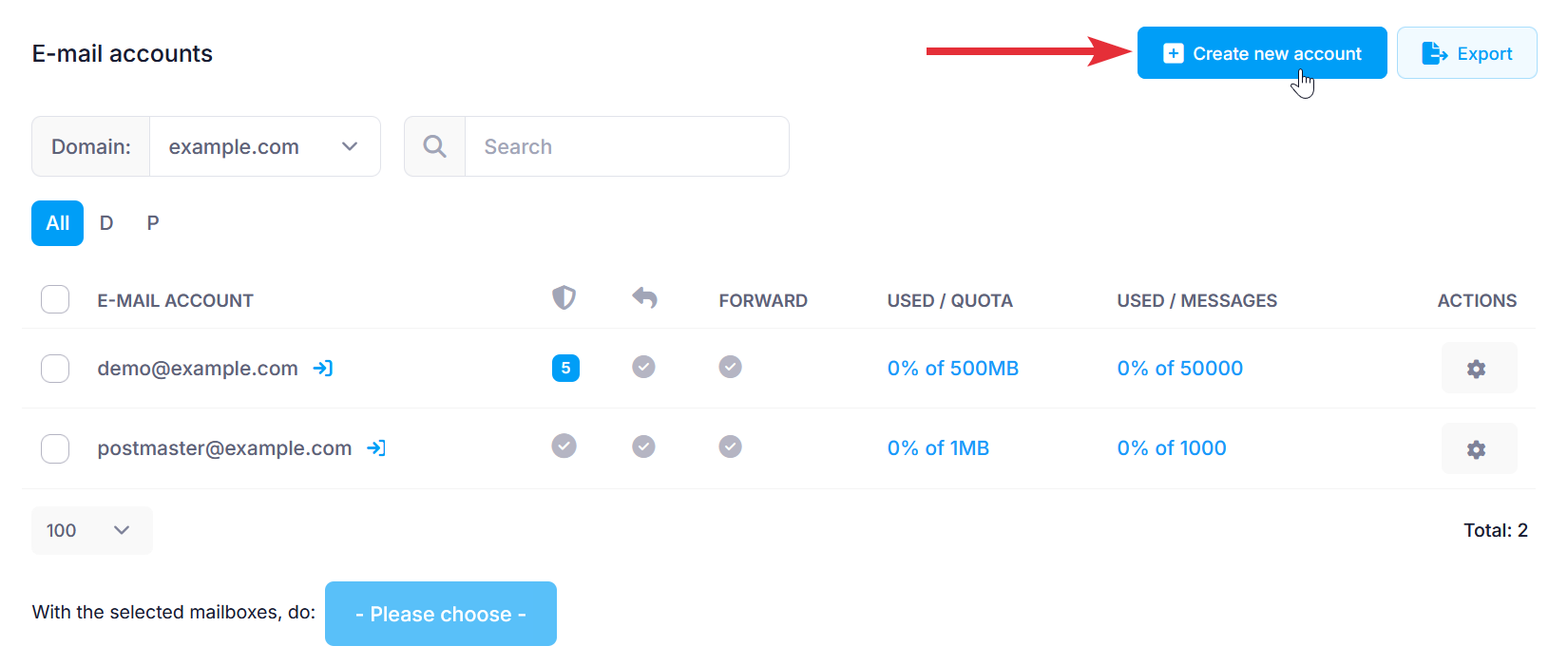
- Go to the Mail Manager section.
- Click on the Create new account button to the right.
- The Create new account screen will pop up where you will need to fill in your preferred settings for the new email account.
- Enter the username of the new account in the Create New Account field.
- Enter a password for the new account in the Password field. As you type your new password, a strength indicator below the field updates in real time. It shows one of four strength levels. You’ll also see tips and requirements in a red tooltip just below the indicator to help you create a stronger password. You can check the article on Choosing a password or the one on using the Random password generator for more details on setting up a good password.
- Re-type the new password at the Confirm password field.
There are several options you can configure through the Additional options and Filtering subsections when creating a new email account:
• Set a disk space quota (the maximum amount you can set depends on the type of hosting plan)
• Limit the number of stored messages
• Enable notifications when nearing the quota
• Turn on subaddressing
• Set up email forwarding
• Enable virus protection
• Enable SpamAssassin for spam filtering- Scroll down, and click on the Create button.