CDN
A Content Delivery Network (CDN) is a global network of servers that caches your website's static content (like images and CSS files). It speeds up your site by delivering that content from the server geographically closest to each visitor, drastically reducing data travel distance.
You can manage all aspects of the CDN service directly from the CDN section in your Control Panel. Each CDN slot can be assigned to a specific hostname, such as www.example.com or cdn.example.com. When you enable CDN for the www subdomain (for example, www.example.com), the CDN will also be automatically activated for the apex domain (example.com).
Enable CDN
When you click the Enable CDN button, you will need to select the hostname from the drop-down list. CDN can be enabled for any subdomain or parked domain associated with your account.

If your domain is using our DNS service, the DNS records required for the CDN will be configured automatically. However, if you are using an external DNS service, the Enable CDN dialog will display the DNS records that you need to configure manually once the CDN is activated.
CDN activation may take up to 30 minutes to complete, but your website will remain fully accessible during this period. Once the process is finished, the status of the CDN will change from Enabling CDN to Enabled. You will also receive an email notification confirming the activation. If you are using an external DNS service, the notification will include the DNS records you need to configure with your DNS provider. Keep in mind that DNS changes may take some time to propagate globally.
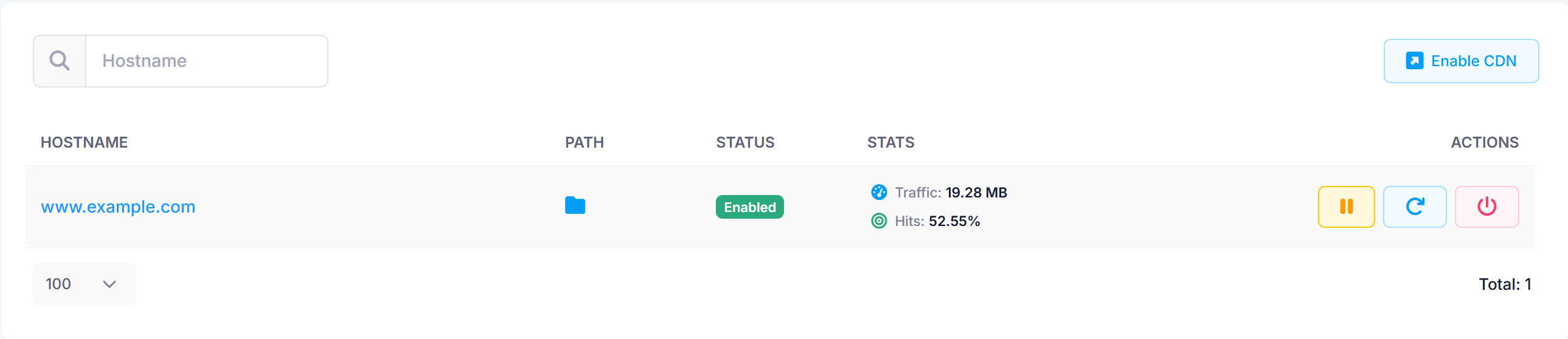
Purge Cache
You can use the Purge button to clear cached content from all CDN edge servers. This forces the CDN to fetch updated content from your server, which is useful after major updates or fixes.
Bypass CDN caching
You can use the Bypass CDN caching button to temporarily disable caching while continuing to route traffic through the CDN. This option is particularly useful during website development or troubleshooting, when you need to see immediate content updates without cached data interfering. The status of the CDN will display as Cache bypassed until you re-enable caching.
Stats
The Stats subsection gives you an overview of how your CDN is performing across all CDN-enabled hostnames. It shows traffic volume, cache efficiency, request counts, and HTTP response codes for a selected time period. You can filter by hostname and date range.
The following terms are used throughout this section:
- Edge traffic - the total amount of data the CDN delivered to your visitors from its edge servers, including both cached and non-cached responses.
- Origin traffic - the amount of data the CDN had to fetch from your hosting server because the requested file was not available in the cache. A lower origin traffic compared to edge traffic means your CDN cache is working well.
- Cache hit ratio - the percentage of traffic served from the CDN cache without contacting your hosting server. The CDN caches static files by default, so the ratio reflects cached static content only. A higher ratio means better CDN performance.
- Total requests - the total number of HTTP requests made to your website during the selected period, counting both cached and non-cached responses.
- Response status groups - a chart that groups HTTP responses into four categories: 2xx (successful requests), 3xx (redirects), 4xx (client errors such as page not found or too many requests), and 5xx (server errors). A healthy site should have mostly 2xx responses.
- Edge status codes - the HTTP responses the CDN returned to your visitors.
- Origin status codes - the HTTP responses the CDN received from your hosting server. Edge and origin status codes are usually similar, but can differ when the CDN handles an error or redirect without contacting your hosting server.
- Error details - a table listing specific error codes with their count at the edge and origin level. Common ones include 403 (Forbidden), 404 (Not Found), 429 (Too Many Requests), 500 (Internal Server Error), 502 (Bad Gateway), and 504 (Gateway Timeout).
Logs
The Logs subsection shows a detailed log of individual requests processed by the CDN. You can use it to investigate specific errors, check cache behavior, or identify traffic from a particular IP address.
- Filters - You can filter logs by hostname, date range, HTTP method, status code, cache status, and client IP address. Click Search to apply the filters. The Filter results field at the top of the table narrows down the already loaded results by keyword without making a new search.
- Columns - The table includes the following columns: Date, Requested URL, HTTP Method, Status Code, Cache Status, Client, and Details.
Disable CDN
When you click the Disable CDN button, the CDN service for the selected hostname is turned off. You will also receive an email notification confirming the deactivation. If your domain is using our DNS service, the hostname will automatically be pointed back to your server. However, if you are using an external DNS service, you must update your DNS records to point to your origin server before disabling CDN. Failing to do so may result in service disruptions.
Notes
If you have an SSL certificate, it will be uploaded to the CDN automatically. This ensures that secure connections are maintained without requiring any additional configuration on your part.
The CDN cache handles the following common static file extensions:
avi,bmp,bz2,class,css,divx,doc,docx,exe,gif,gz,ico,jpeg,jpg,js,mov,mp3,mpeg,mpg,ogg,png,ppt,pptx,qt,svg,swf,tar,tbz,tgz,tif,tiff,txt,wav,wma,xls,xlsx,zip
CDN can also be enabled for hostnames that already have Server-side Caching enabled. Both layers of caching can work together to optimize content delivery.