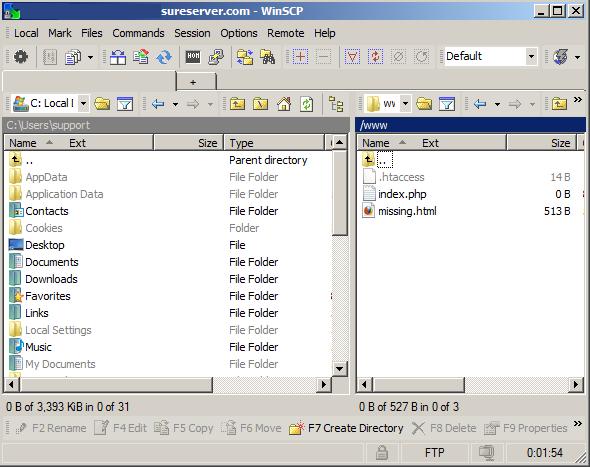
Uploading with WinSCP
1. Open your WinSCP program.
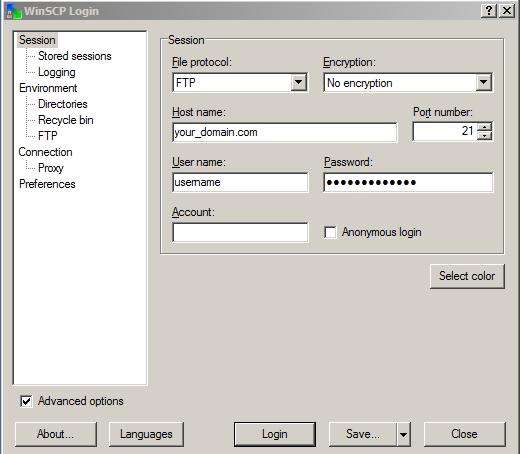
2. On the Session screen you have several fields that you need to fill out.
- File Protocol: Select FTP.
- Host name: Type your domain name here, e.g. example.com. You can also use the hostname of the server on which your account is hosted. This information can be found in the Welcome e-mail message for your hosting account.
- Port number: Enter 21.
- Encryption: Select No encryption. If you want to use encryption, select SSL Explicit encryption. In this case, you will receive a warning once you connect. You will need to click OK to save the certificate and log in to the server.
- In the Username and Password fields you need to specify the FTP login details you want to connect with. You can connect with your hosting Control Panel username/password details. In case you want to connect with an FTP subuser you previously created at your FTP Manager Control Panel section, you need to specify the login details for that particular user.
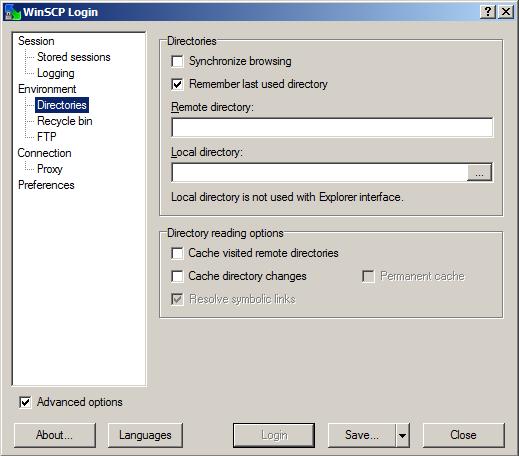
3. Then, proceed to the Environment > Directories tab, and use these settings:
- Remote directory: You can leave this field empty.
- Local directory: This is the directory that contains the files you want to upload on the server. You can leave this field empty. After you connect to the server, you can use the File Manager of WinSCP to navigate to the folder that contains the files you want to upload.
- Directory reading options: You need to uncheck first Permanent cache option and uncheck the Cache visited remote directories and Cache directory changes options.
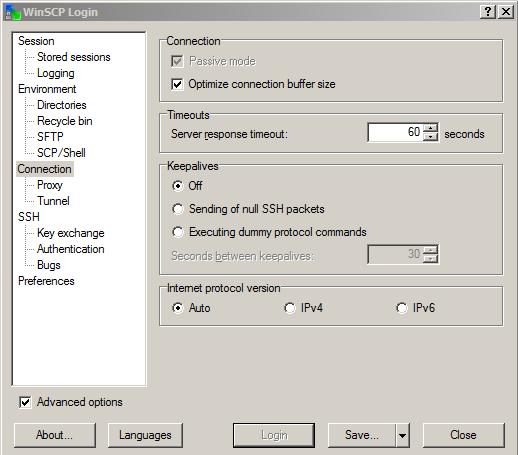
4. Once ready, please choose the Connection tab, and use these settings:
- Connection: You need to enable Passive mode.
- Timeouts: Change the server response timeout to 60 seconds.
- Keepalives: Select Off.
5. Click on the Login button to connect to the server.
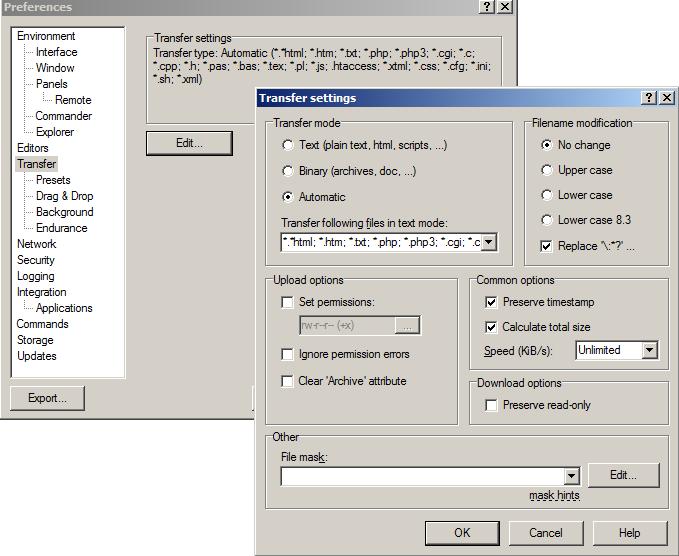
6. By default, WinSCP uploads all files in Binary mode. This will break certain scripts (such as Perl and CGI) that should be uploaded in text mode. You can navigate to the Preferences > Transfer screen and set the Transfer mode to Automatic. You can add additional file types that you want transferred in text mode.
7. To upload or download, select the file or folder, and drag-and-drop it in the location you want it to copy it to.